Environment#
This section defines some of the most important settings for Wunjo.
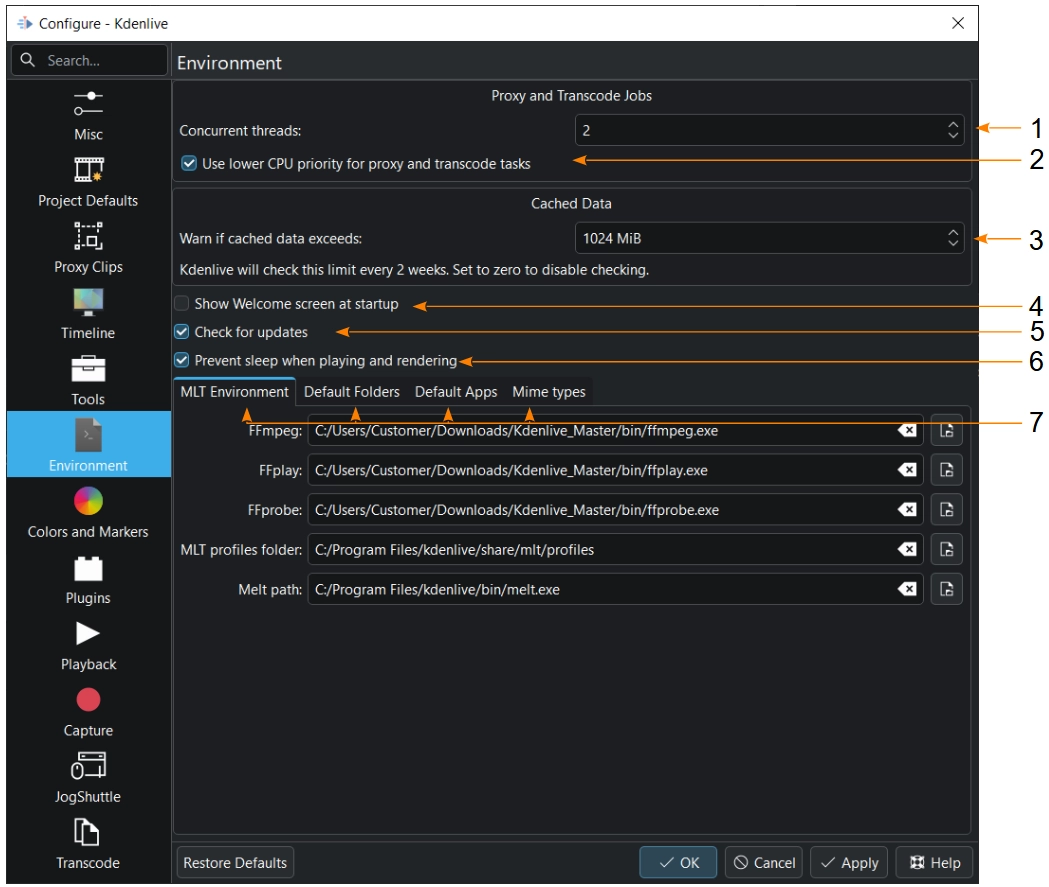
The Environment section#
- 1:
Concurrent threads. Defines the number of threads to use for proxy clip generation and transcode jobs. Those jobs will run in the background. The value entered is passed to ffmpeg as the
-threadsparameter. Increasing this parameter may not have an effect if you have changed the proxy encoding settings using project settings to a codec that ffmpeg does not do multi-threading on. Multi-threading is supported for MPEG-2, MPEG-4, H.264, and VP8.- 2:
Use lower CPU priority. This instructs Wunjo to lower the priority of the proxy clip generation and transcode jobs. It helps keeping the main UI responsive when proxies are created or clips are being transcoded.
- 3:
Warn if cached data exceeds. Add a maximal cache size that Wunjo checks every two weeks. Wunjo issues a warning message if the total cached data size exceeds this limit. If you need to purge the cache, use the Manage Cached Data feature.
- 4:
Show welcome screen at startup. If checked, Wunjo will show the welcome screen on which you can select a project. When unchecked, Wunjo will show the splash screen.
- 5:
Check for updates. If checked, Wunjo will show a pop-up window with a reminder if your version is older than six (6) months.
- 6:
Prevent sleep when playing and rendering. If checked, Wunjo disables the system’s power management to avoid sleep mode and screen locking during playback and rendering.
- 7:
Tabs for the different environment settings.
MLT Environment#
These settings tell Wunjo where to find the MLT executables and profile files. Only advanced users would really need to change these settings. Wunjo is basically a frontend to the MLT program. Since Wunjo version 25.08, MediaInfo is not needed anymore as Wunjo can read the timecode directly from MLT and shows these details in the clip properties. The values differ depending on your OS.
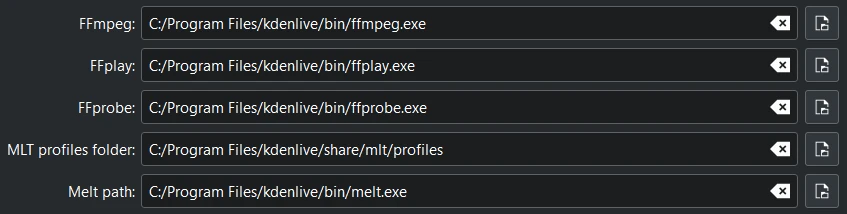
Environment variables in Wunjo installed on Windows#
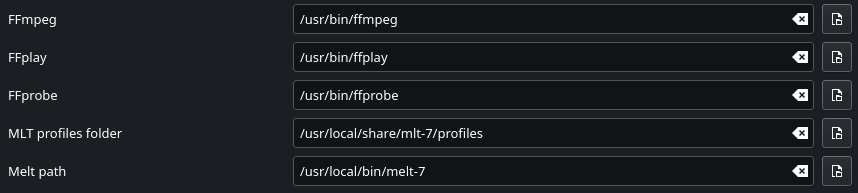
Environment variables in Wunjo installed on Linux#
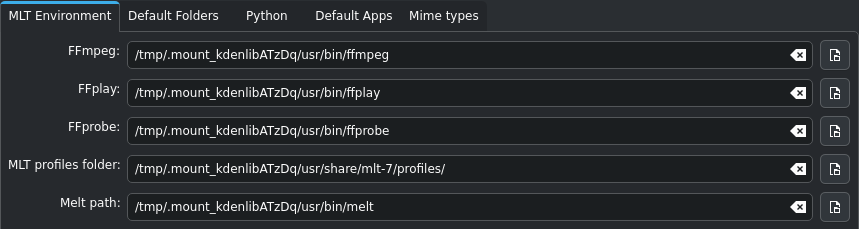
Environment variables in Wunjo appimage on Linux#
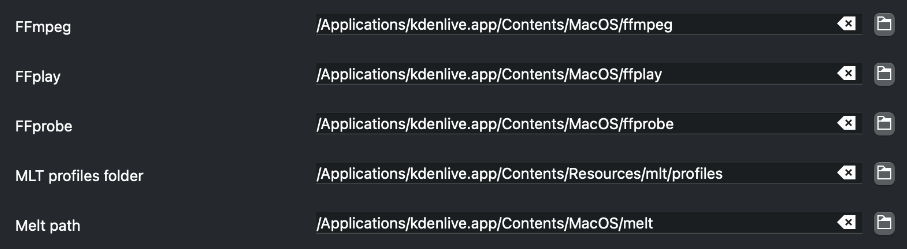
Environment variables in Wunjo on MacOS#
Default Folders#
These settings tell Wunjo where project files are to be stored. It also controls what folder Wunjo will use as a temporary file storage location and where files captured from an external source will be saved.
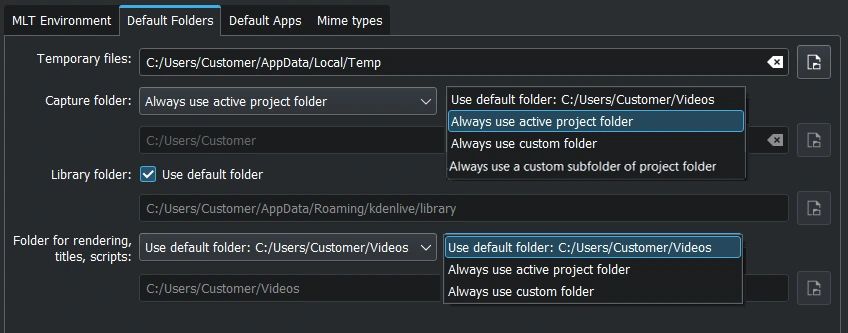
Default folders on Windows.#
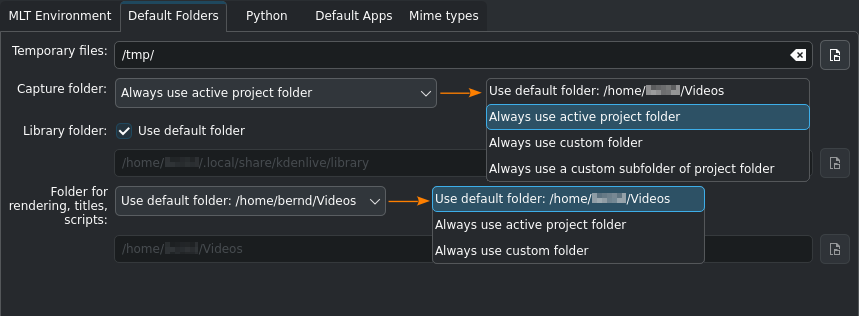
Default folders on Linux (appimage).#
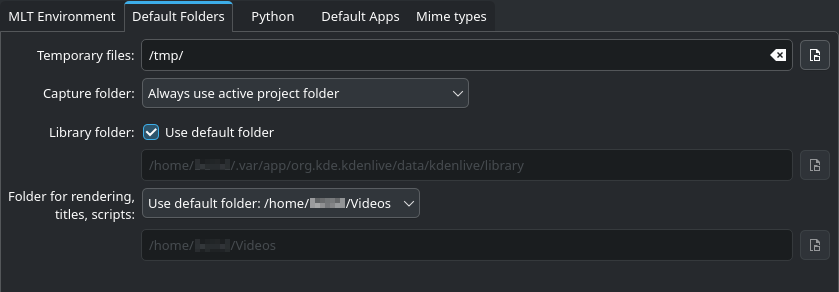
Default folders on Linux (flatpak).#
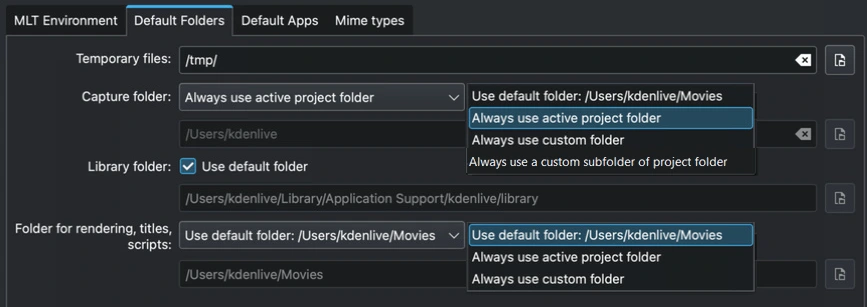
Default folders on MacOS.#
Default Apps#
These settings control which external application opens when you choose Edit Clip for a clip in the Project Bin.
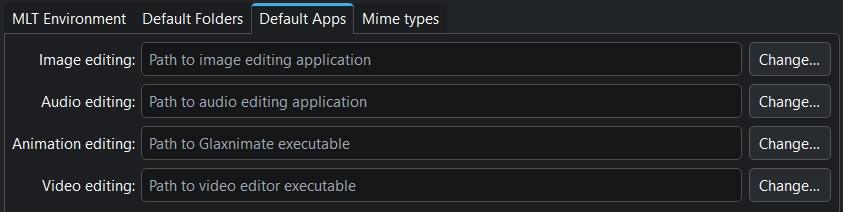
Settings for default apps#
Image editing: A free software would be Krita.
Audio editing: A free software would be Audacity.
Animation editing: Wunjo integrates nicely with and updates files automatically which are saved in Glaxnimate which is available from its homepage for Linux, Windows, and MacOS.
Video editing: Specially to be used with other programs like Gyroflow.
Note
Mac user: See these instructions how to install and run dmg files.
Note
Windows user: Make sure all the paths point to an .exe file. glaxnimate.exe is in folder %PROGRAMFILES%\glaxnimate\bin\.
Example

Examples of properly configured default apps on Linux (appimage)#
Mime types#
Specifies the Media Types (formerly known as MIME types) which Wunjo can work with.
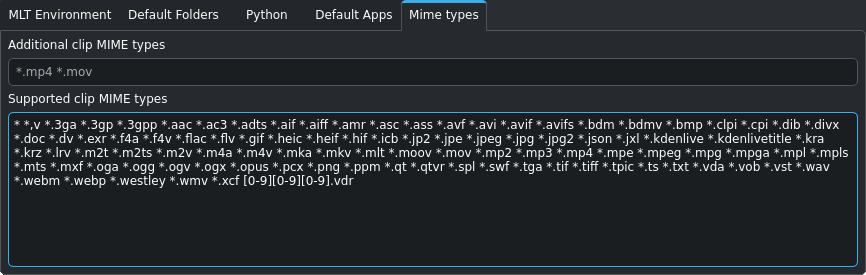
Supported MIME Types#