Keyboard Shortcuts#
Wunjo has many keyboard shortcuts already defined by default. You can change these anytime through or by pressing Ctrl+Alt+, . See also the Configure Shortcuts chapter.
You can also download keyboard shortcut definition files (aka Wunjo Keyboard Schemes) from the KDE Store. See also the Useful Resources chapter.
File#
Action Name |
Shortcuts |
Description |
|---|---|---|
New |
Ctrl+N |
Creates a new Wunjo project |
Open… |
Ctrl+O |
Opens a Wunjo project |
Quit |
Ctrl+Q |
Exits Wunjo |
Save |
Ctrl+S |
Saves the current state of the project |
Save As… |
Ctrl+Shift+S |
Saves the current state of the project with the name of your choice |
General#
Action Name |
Shortcuts |
Description |
|---|---|---|
Collapse/Expand Item |
< |
|
Cut |
Ctrl+X |
Current selection |
Copy |
Ctrl+C or
Ctrl+Ins
|
Current selection |
Delete Selected Item |
Del |
|
Find Action… |
Ctrl+Alt+I |
Opens the action window. Only possible with this shortcut. |
Full Screen Mode |
Ctrl+Shift+F |
|
Wunjo Handbook |
F1 |
|
Switch Monitor Fullscreen |
F11 or
double-click
|
Monitor |
Paste |
Ctrl+V or
Shift+Ins
|
|
Redo |
Ctrl+Shift+Z |
|
Rename… |
F2 |
|
Show Menu Bar |
Ctrl+M |
Show Menu Bar
Shows the menu bar again after it has been hidden
|
Select All |
Ctrl+A |
Works in:
|
Undo |
Ctrl+Z |
|
Up |
Alt+Up |
|
What’s This? |
Shift+F1 |
|
Zoom In |
Ctrl++ |
Works in Timeline only |
Zoom In |
Ctrl+= or
Ctrl+MW[1]
|
Works in:
|
Zoom Out |
Ctrl+- |
Works in Timeline only |
Zoom Out |
Ctrl+MW[1] |
Works in:
|
Increment, Decrement |
MW |
Works in:
|
Add to the selection |
Shift+LMB[2]
Shift+dragging
|
Works in:
|
Expand/Collapse |
Shift+LMB[2] |
Works in:
|
Navigate |
Arrow Up/Down |
Works in:
|
Add to the selection |
Ctrl+LMB[2] |
Works in:
|
Double click |
Works in:
|
|
Reset value to default |
Works in: |
Project Bin#
Action Name |
Shortcuts |
Description |
|---|---|---|
Closing the extra bins |
CTRL+w |
Editing#
Action Name |
Shortcuts |
Description |
|---|---|---|
Focus Timecode |
= |
|
Insert Zone in Project Bin |
Ctrl+I |
Clip monitor |
Set Zone In |
I |
|
Set Zone Out |
O |
|
Adjust timeline zone |
Shift+z |
Adjusts timeline zone to selected clips |
Switch Monitor |
T |
Switch between clip monitor and project monitor (timeline) |
Select Target 1 |
Ctrl+1 |
3-point-editing |
Select Target 2 |
Ctrl+2 |
3-point-editing |
Select Target 3 |
Ctrl+3 |
3-point-editing |
Select Target 4 |
Ctrl+4 |
3-point-editing |
Select Target 5 |
Ctrl+5 |
3-point-editing |
Select Target 6 |
Ctrl+6 |
3-point-editing |
Select Target 7 |
Ctrl+7 |
3-point-editing |
Select Target 8 |
Ctrl+8 |
3-point-editing |
Select Target 9 |
Ctrl+9 |
3-point-editing |
Switch All Tracks Active |
Alt+Shift+A |
3-point-editing |
Toggle All Track Lock |
Ctrl+Shift+L |
Tracks |
Toggle Track Hidden/Mute |
Ctrl+Shift+H |
Toggle video/audio track hidden/mute when selected |
Toggle All Tracks Active |
Shift+A |
3-point-editing |
Toggle Track Active |
A |
3-point-editing Activate the track as a target with shortcut A (this connects the track to the source) |
Slip multiple clips at once |
Shift+move |
select all clips you want to slip with the selection tool using Shift then enable the slip tool and go ahead… |
Slip a clip |
left/right |
Slip can be done with the mouse, with the left/right keys and with the buttons on the monitor toolbar. |
Timeline#
Action Name |
Shortcuts |
Description |
|---|---|---|
Add Clip to Selection |
Alt++ |
Adds the clip of the active track to the selection at playhead position. |
Add Marker quickly |
Num+* |
On Numlock pad: * adds a marker |
Add Subtitle |
Shift+S |
Adds a subtitle at playhead position. |
Create a new subtitle layer |
Shift+drag |
Adds a new subtitle layer by dragging an existing subtitle down beyond the bottom of the subtitle track. |
Add Transition to Selection |
Alt+Shift++ |
|
Duplicate Clip |
Ctrl+D |
Copy selected clip and place it on the timeline after the selected clip |
Add/Remove Guide |
G |
Adds a timeline marker at playhead position. |
Group Clips |
Ctrl+G |
Current selection |
Ungroup Clips |
Ctrl+Shift+G |
Current selection |
Edit Grouped Clips |
Ctrl+click |
Current selection |
Cut All Clips |
Ctrl+Shift+R |
Cuts all clips at playhead position. Except tracks which are locked. |
Cut Clip |
Shift+R |
Cuts the clip of the active track at playhead position. |
Deselect Clip |
- |
|
Deselect Transition |
Shift+- |
|
Extract Timeline Zone |
Shift+X |
|
Grab Current Item |
Shift+G |
Select a clip -> Shift+G -> move the clip with left/right |
Insert Clip Zone in Timeline |
V |
|
Lift Timeline Zone |
Z |
|
Mix Clips |
U |
Or double click. Play head must be on the end/begin of 2 clips. Creates a transition between 2 clips on the same track. |
Extract Clip |
Shift+Del |
Deletes the clip from the Timeline and removes the gap |
Multitrack View |
F12 |
must be disabled |
Overwrite Clip Zone in Timeline |
B |
|
Resize Item End |
) |
On active track: Cut the clip at the playhead position and delete the remainder.
On active track: Cut, delete and remove the empty space use Ripple Trim to Playhead.
|
Resize Item Start |
( |
On active track: Cut the clip at the playhead position and delete the section from the start of the clip to the playhead.
On active track: Cut, delete and remove the empty space use Ripple Trim to Playhead.
|
Select Clip |
+ |
|
Select Transition |
Shift++ |
|
Start Preview Render |
Shift+Return |
|
Razor Tool |
X |
Tools |
Selection Tool |
S |
Tools |
Spacer Tool |
M |
Tools |
Deselect |
Ctrl+Shift+A |
Tracks |
Select Audio Track 1 |
Alt+1 |
Tracks |
Select Audio Track 2 |
Alt+2 |
Tracks |
Select Audio Track 3 |
Alt+3 |
Tracks |
Select Audio Track 4 |
Alt+4 |
Tracks |
Select Audio Track 5 |
Alt+5 |
Tracks |
Select Audio Track 6 |
Alt+6 |
Tracks |
Select Audio Track 7 |
Alt+7 |
Tracks |
Select Audio Track 8 |
Alt+8 |
Tracks |
Select Audio Track 9 |
Alt+9 |
Tracks |
Select Video Track 1 |
1 |
Track selection in general and for 3-point-editing
Multicam tool: You trim the clips in the desired track while the timeline is playing
|
Select Video Track 2 |
2 |
Track selection in general and for 3-point-editing
Multicam tool: You trim the clips in the desired track while the timeline is playing
|
Select Video Track 3 |
3 |
Track selection in general and for 3-point-editing
Multicam tool: You trim the clips in the desired track while the timeline is playing
|
Select Video Track 4 |
4 |
Track selection in general and for 3-point-editing
Multicam tool: You trim the clips in the desired track while the timeline is playing
|
Select Video Track 5 |
5 |
Track selection in general and for 3-point-editing
Multicam tool: You trim the clips in the desired track while the timeline is playing
|
Select Video Track 6 |
6 |
Track selection in general and for 3-point-editing
Multicam tool: You trim the clips in the desired track while the timeline is playing
|
Select Video Track 7 |
7 |
Track selection in general and for 3-point-editing
Multicam tool: You trim the clips in the desired track while the timeline is playing
|
Select Video Track 8 |
8 |
Track selection in general and for 3-point-editing
Multicam tool: You trim the clips in the desired track while the timeline is playing
|
Select Video Track 9 |
9 |
Track selection in general and for 3-point-editing
Multicam tool: You trim the clips in the desired track while the timeline is playing
|
Switch Track Target Audio Stream |
' |
Tracks |
Toggle Track Disabled |
Shift+H |
Tracks |
Toggle Track Lock |
Shift+L |
Tracks |
Toggle Track Target |
Shift+T |
3-point-editing
Select a video or audio track in the timeline (up/down arrow key) and set it as source with Shift+T.
|
Resize only audio or video part of a clip |
Shift+resize |
Only possible with keyboard |
Move audio or video part to another track independently. |
Alt+move |
Only possible with keyboard |
Adjust the speed of a clip |
Ctrl+dragging |
Only possible with keyboard |
Timeline panning |
Ctrl+dragging
MMB+dragging[1]
|
|
Return from any tools back to Selection tool. |
ESC |
Only possible with keyboard |
Tracks resized simultaneously |
Shift+dragging |
Either for video or audio tracks. |
Tracks resized simultaneously to normal |
Shift+double-click |
Normalize track height either for video or audio tracks. |
Track selection |
up/down |
|
Toggle between sequence tabs |
Ctrl+Tab
Ctrl+Shift+Tab
|
Go to next sequence
Go to previous sequence
|
Titler#
Action Name |
Shortcuts |
Description |
|---|---|---|
Add text |
Alt+T |
Click on the canvas to add text |
Add rectangle |
Alt+R |
Drag the mouse to draw a rectangle |
Add ellipse |
Alt+E |
Drag the mouse to draw a ellipse. |
Insert an image |
Alt+I |
Insert an image |
Back to selection tool |
Alt+S |
|
Move selected items vertical only. |
Shift |
Hold Shift moves selected items vertical only. |
Move selected items horizontally only. |
Shift+Alt |
Hold Shift+Alt moves selected items horizontally only. |
Render#
Action Name |
Shortcuts |
Description |
|---|---|---|
Render |
Ctrl+Return |
Opens the Render window. |
Settings#
Action Name |
Shortcuts |
Description |
|---|---|---|
Configure Wunjo Make… |
Ctrl+Shift+, |
Opens the configure window |
Configure Keyboard Shortcuts… |
Ctrl+Alt+, |
Opens the shortcut window |
Raise Widgets with Shortcuts#
You can assign shortcuts to raise docked widgets. In the (or Ctrl+Alt+, window search for “raise” and it will list all widgets that can be raised. Assign a keyboard shortcut to a widget, and if you press that key combination Wunjo will bring the focus to the respective widget and select it.
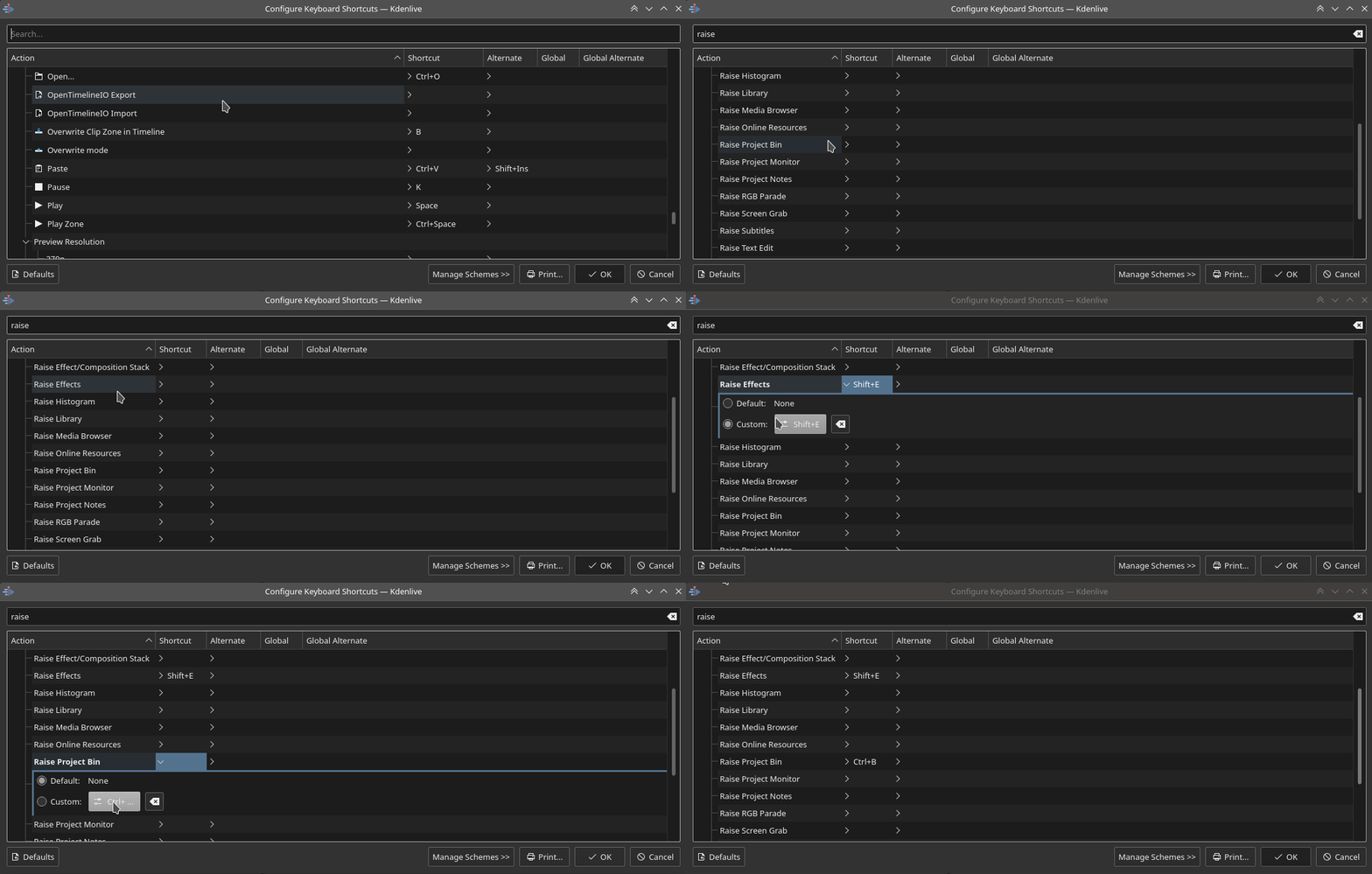
Assigning a keyboard shortcut to raise a widget#
Shortcuts for Keyframe Functions#
You can assign shortcuts to the following three keyframe functions: Add/Remove Keyframe, Go to next keyframe and Go to previous keyframe.
Click on a clip in the timeline and you can use the shortcuts to add/remove keyframes or jump between them.
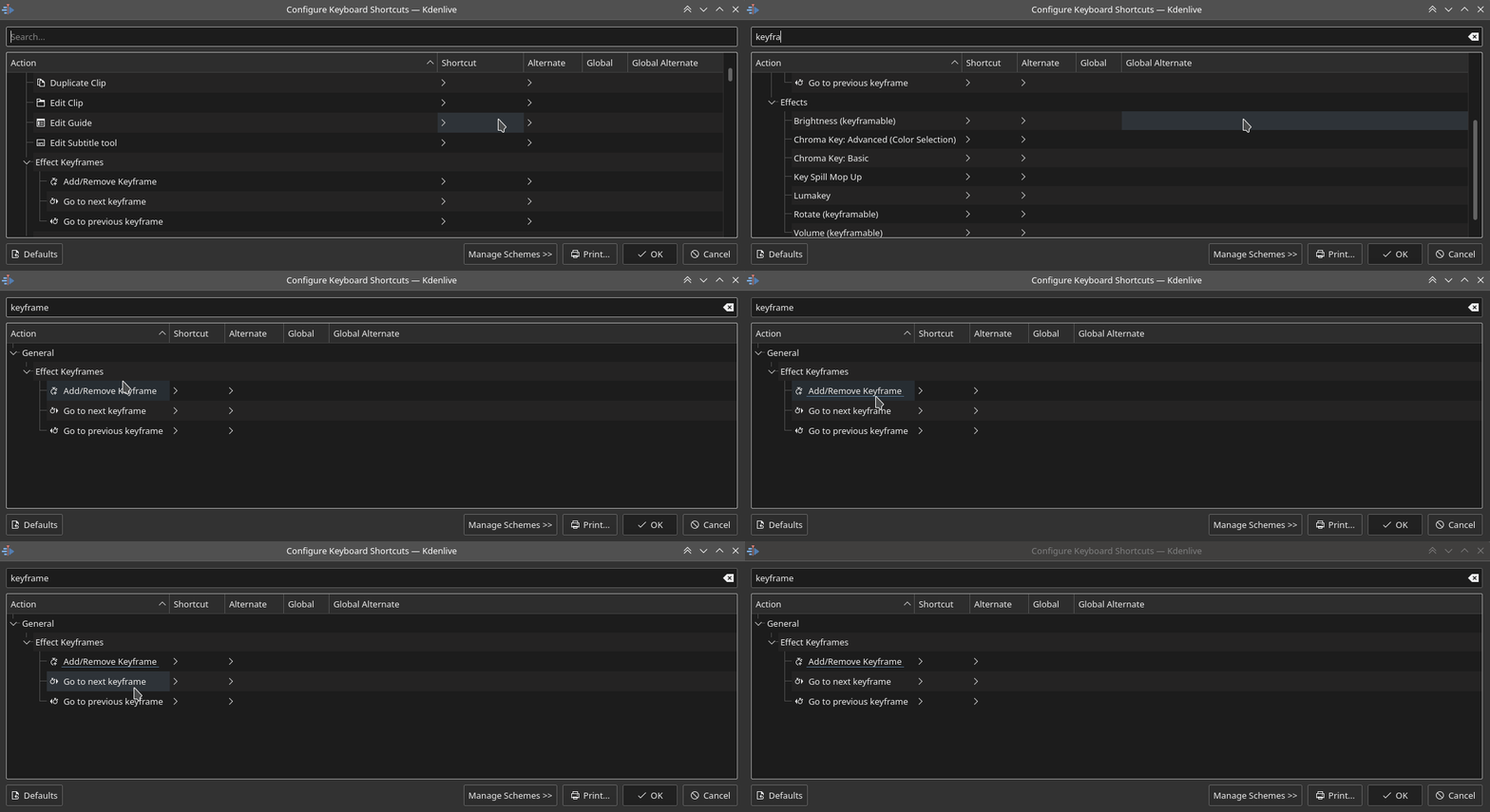
Creating keyboard shortcuts for keyframe functions#
Command Search Bar#
The command bar allows to easily search for any action in Wunjo like changing themes, adding effects, opening files and more. It can be accessed with the shortcut Ctrl+Alt+I. The shortcut is defined by KDE-Framework, so do not change it.
Note
This feature requires KDE Frameworks lib version 5.83.
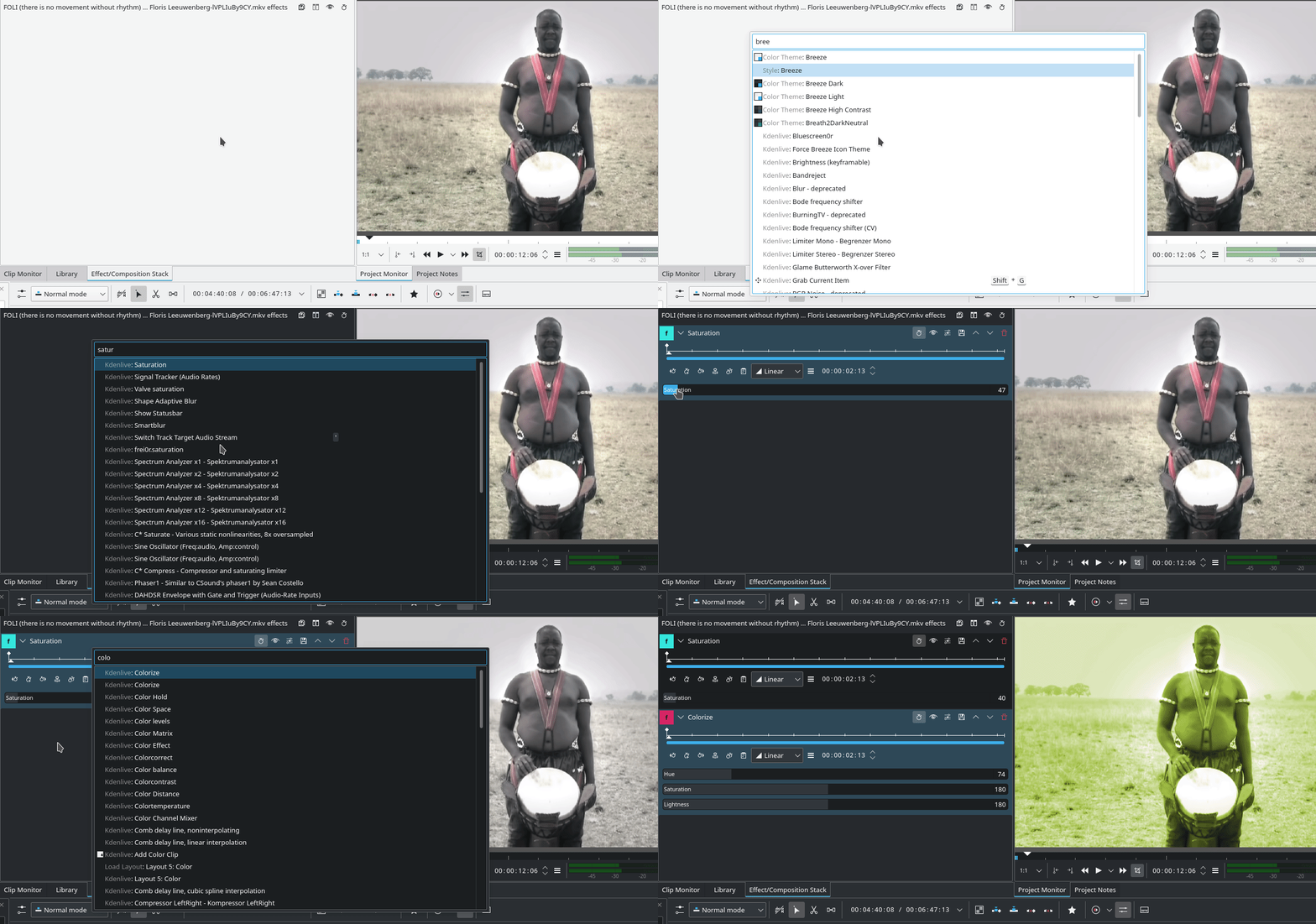
Searching for Wunjo action commands#